How the two talk
A Haltech dash listens on CAN bus for data frames it recognizes. The Syvecs side is configured in SCal using a Custom CAN datastream, laid out to match a protocol based on the Life Racing dataset, with some extra channels Life Racing doesn't include. You tell SCal which CAN IDs to use, how often to send each frame, and which channel goes in each slot of each frame.
On the dash side, if your display runs NSP (or has been updated to it), you first set it up to receive third-party ECU data. Our sourcing data for dashes in NSP article walks through the third-party ECU CAN setup.
Two ways to set up SCal
| Option | Best when | Watch out for |
|---|---|---|
| Start from Haltech's preconfigured calibration file | You're building a new calibration and want the CAN setup done for you | It isn't a base map. It only carries the dash CAN setup, so you still adapt everything else to your engine |
| Add Custom CAN to your existing calibration | The car already runs on a Syvecs calibration you're happy with | Every channel has to be entered by hand, so check each one against the channel table |
Haltech provides a calibration file (Haltech_Syvecs.sc) with the datastream already set up, along with the channel table showing CAN IDs, frame rates and frame content. Contact us and we'll send the file and table over with advice for your setup.
Step by step in SCal
- Open the calibration. Load either Haltech's file or your own
.scfile in SCal. When prompted, selectGENERIC : OKand confirm. - Turn on Custom CAN. In the functions tree, open Datastreams, go to Datastream Select, step through with the + and - keys until it shows
Custom CAN, then press ESC. - Set the frame IDs. Open the Custom CAN node and go to Frame Identifier - f(Frame). Enter the CAN IDs from the channel table. Any frame you're not using must be set to
000h, and that includes frames 19 and 20 for the Haltech dash. Press ESC. - Set the frame rates. In Frame Frequency - f(Frame), enter how often each frame is sent. SCal may need unused frames, frames 19 and 20 included, set to 0 so they read UNUSED. Press ESC.
- Fill in the frame content. In Frame Content - f(Slot, Frame), assign the channel for each slot as listed in the table. Any rows left over, eight cells for the Haltech dash, should be
NOT_SET. The result shows as a 3D mesh; press ESC when it's done. - Program and save. Use DEVICE, then PROGRAM from the top menu to send the changes to the ECU, and save the file.
The unused-frame settings are the step people skip. Leftover IDs, rates or content are a common reason for missing or wrong data, so set them exactly as described.
Wiring and hardware
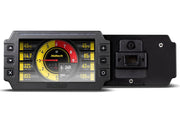
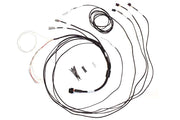
You'll need the Syvecs CAN High and CAN Low connected to the dash's CAN bus, with the bus terminated correctly at each end. For a standalone install where the dash isn't sharing a Haltech ECU's harness, the semi-terminated stand-alone IC-7 harness is the easy route. Dash options include the IC-7 color display dash and the IC-7 OBD-II version.
Troubleshooting
| Symptom | Usually |
|---|---|
| No data on the dash at all | Datastream not set to Custom CAN, changes not programmed to the ECU, or CAN High/Low swapped |
| Some channels missing | A frame's ID, rate or content entered incorrectly |
| Values jumping to nonsense | Unused frames not set to 000h / UNUSED / NOT_SET, or the wrong channel in a slot |
| Dash works, then drops out | Bus termination or a loose CAN connection |
FAQ
Can I use the Haltech calibration file as my tune?
No. It's only there to provide the dash CAN configuration. Move your engine calibration into it, or add the CAN setup to your own file instead.
Does this work with other third-party ECUs?
Yes, with a different setup for each. See our guides for Link, MaxxECU and MoTeC ECUs.