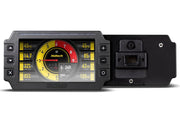
What you're setting up
A dash like the Haltech iC-7 (or the iC-7 OBD-II version) reads engine data over CAN. With a MoTeC ECU, three things have to line up:
- Wiring: power, ground and a CAN connection between the dash and the ECU.
- The dash: told, in NSP, that its data comes from a third-party ECU.
- The MoTeC ECU: transmitting on the bus the dash is connected to, at the right speed.
Step 1: wiring
Give the dash a good switched 12V feed and a solid ground, then connect its CAN High and CAN Low to the MoTeC ECU's CAN High and CAN Low pins on the ECU connector. High goes to high and low to low. Swapping them is one of the most common reasons a dash shows nothing.
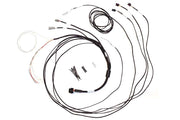
If you'd like to avoid splicing into the ECU loom, the HT-130046 CAN adaptor loom is made for this. It terminates the Haltech CAN High (white) and CAN Low (blue) in a Superseal plug to suit the ECU side, and a DTM-4 socket that takes the CAN cable supplied with the dash. It also has red and black flying leads for switched 12V and ground. For a dash going into a car without other Haltech gear, the semi-terminated standalone iC-7 harness is another tidy option.
MoTeC M1 ECUs have more than one CAN bus. Wire the dash to the same bus you select for transmission in the M1 steps below, or the dash will be listening on a bus that isn't carrying the data.
Step 2: set up the dash in NSP
If your dash runs NSP, or has been updated to it, set its data source to a third-party ECU and choose MoTeC. The "third-party ECU CAN" part of sourcing data for dashes in NSP walks through the screen. If you're new to the dash side of NSP, navigating dashes in NSP is a good primer.
Step 3a: MoTeC M1 series
- Connect to the ECU online in M1 Tune.
- Open the All Calibrate worksheet.
- In the Calibrate pane, tick the Setup type so the setup parameters are visible.
- Go to ECU > Transmit > CAN Bus. Note which bus is selected, or if none is, pick a free one.
- Go to CAN > Bus X, where X is that bus number, and set Mode to 1 Mbps.
Step 3b: MoTeC Hundred Series (M400, M600, M800 and similar)
- Connect online using MoTeC ECU Manager.
- Open Adjust > General Setup > Communications > CAN Setup.
- Configure the CAN transmit settings so the ECU broadcasts the data set the Haltech dash expects. If you're not sure of the exact values for your firmware, ask us and we'll send the screen we work from.
- Save the map and restart the ECU so the new settings take effect.
Checking it works
Turn the ignition on and look for live values that change: engine speed at crank, coolant temperature climbing as it warms, throttle moving with the pedal. If some channels work and others don't, the link is fine and the question is which channels the MoTeC stream includes.
Troubleshooting
| Symptom | Usually |
|---|---|
| Dash powers up but shows no engine data | CAN High and Low swapped, wrong M1 bus, or dash not set to a third-party ECU |
| Data drops in and out | Bit rate mismatch, poor ground, or a missing CAN termination |
| Changes on a Hundred Series ECU didn't stick | Map not saved, or the ECU not restarted afterward |
| Only some channels show | The channel isn't part of what the ECU transmits |
FAQ
Can a Haltech dash work with other brands of ECU?
Yes. We have similar guides for Link, Syvecs and other ECUs.
Do I need the adaptor loom?
No, it just saves splicing. Any clean CAN High and CAN Low connection with good power and ground will do the job.