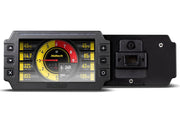
Why move your iC-7 to NSP?
Once your iC-7 dash runs on NSP, it gains features that ICC never had:
- Inputs and outputs you can configure yourself, and share with an Elite or Nexus ECU.
- Datalogging in the dash itself.
- Generic channels you can build to suit your car.
- A live connection to your laptop, with a virtual dash display on screen.
It also means the dash and a Nexus ECU are set up in the same program, which makes life easier if you run both. The same applies to the iC-7 OBD-II version.
Read this before you start
The upgrade resets the dash to a default configuration. ICC files can't be loaded into a dash running NSP, so you will be rebuilding your layout, alarms and channels in NSP afterward. Screenshot or note your important ICC settings first.
- You don't have to do it. If your dash does everything you need today, it is fine to stay on ICC.
- Allow about 10 minutes and make sure neither the dash nor the laptop can lose power partway through. Plug the laptop in and use a battery charger or stable supply on the car.
The upgrade, step by step
- Get the latest ICC. Download the newest IC Configurator installer from the downloads section of Haltech's website. At the time of writing that's ICC v1.14.0.
- Install it. Run the installer from your Downloads folder. It installs the updated ICC and also a version of NSP that can configure the iC-7 (v1.38.8 or later).
- Connect the dash. Open ICC, power up the iC-7 and plug it into the laptop with its USB cable. Once ICC shows the dash as connected, an Upgrade to NSP button appears.
- Run the upgrade. Click Upgrade to NSP and leave it alone. The dash will reboot several times and can sit on a black screen for minutes at a time while its firmware is rewritten. That is normal, so don't unplug it. When it finishes, click Finish; ICC closes and NSP opens.
- Connect in NSP. NSP should find the dash on its own. If it doesn't, press the Connect/Disconnect button at the top left of the NSP window.
You'll know it worked the next time you power cycle the dash: the startup screen shows the current Haltech logo instead of the older "Haltech Engine Management Systems" splash used under ICC.
After the upgrade
Now the real work starts: rebuilding your dash. These guides cover the NSP side:
- Navigating dashes in NSP
- Sourcing data for dashes in NSP
- Sharing inputs and outputs between dash and ECU
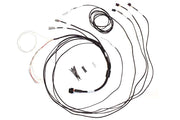
For standalone installs, where the dash isn't connected to a Haltech ECU, see how to install a standalone iC-7 and the semi-terminated standalone harness.
iC-7 wiring diagram
Haltech publishes a full iC-7 wiring diagram showing the connector pinout, power, CAN and IO connections. You'll want it if you're adding sensors or switches to the dash now that its IO is configurable.
Need this diagram? Ask us and we'll send it over with advice for your build.
Troubleshooting
| Symptom | Usually |
|---|---|
| No Upgrade to NSP button | Old ICC version, or the dash isn't actually connected yet |
| Dash black for several minutes | Normal during the reflash. Wait for ICC to report it's done |
| NSP doesn't see the dash | Click Connect/Disconnect, check the USB cable, and confirm the dash has power |
| Can't open my old ICC file | Expected. ICC configurations don't transfer, so rebuild in NSP |
FAQ
Can I go back to ICC afterward?
We treat it as a one-way move. Your ICC configuration is gone once the dash is reflashed, so if you are unsure whether you need the NSP features, stay on ICC until you do.
Do I need a Nexus ECU to use NSP on my dash?
No. NSP configures the dash whether it's paired with an Elite, a Nexus, or running standalone.